Using the UXP (Universal Experience Point)
Your key to the Museum's interactive, tactile, and media experiences.
Welcome
As you explore the Museum at the Obama Presidential Center, you'll find digital interactives, films, and tactile objects throughout the galleries. Placed nearby many of them is a small keypad called a UXP, pronounced “U-X-P” and short for Universal Experience Point. The UXP is for everyone, and it lets you take in each experience in the way that works best for you. You can hear everything that is on screen read aloud, turn on audio description for videos, make on-screen content larger, change how quickly speech is spoken, and more.
Getting to Know the Keypads
At Digital Interactives and Tactiles
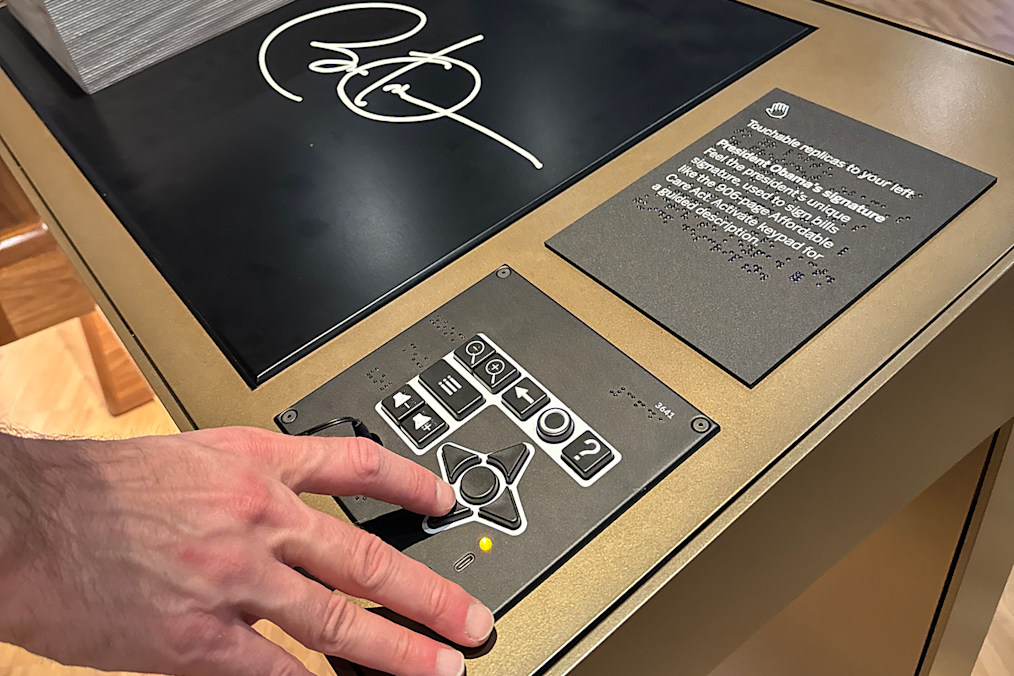
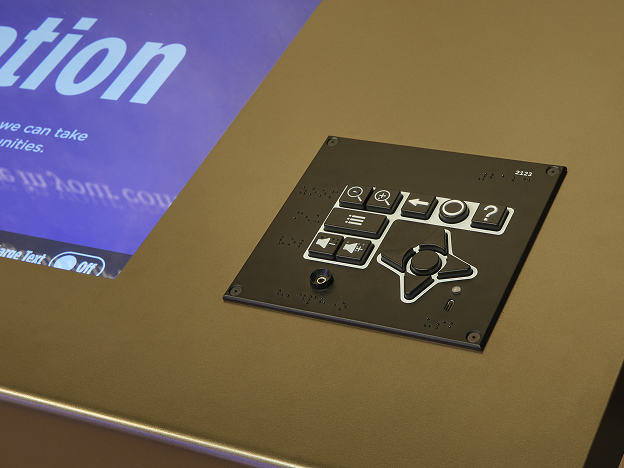
The UXP keypad is arranged so you can find everything by sight or by touch. On the left is a compact cluster of five buttons, each with a braille label to its left: Zoom Out and Zoom In on top, a wide Menu button in the middle, and Volume Down and Volume Up at the bottom. The headphone jack sits just below the volume buttons.
On the right, a row of three buttons sits above the four arrow keys and the round Select button at their center: Back, marked with a left-pointing arrow; Home, the one round button in the row; and Help, marked with a question mark. Every button on the UXP presses with a clear, physical click, so you always know your press has landed.
Getting Started
Plug in headphones. Every UXP gives you two options: a funnel-shaped headphone jack just below the volume buttons that guides your plug into place, and a USB-C port in the bottom right corner. You may use your own wired headphones or alternatively request 3.5mm headphones at the Amenities Desk in the Entry Pavilion (Level 1 Museum Building) or from a Visitor Engagement Associate in the galleries.
Learn the keypad. To enter learn mode, press the Menu button, then Down Arrow once, and then Select. While you're in it, pressing any button speaks that button's name and what it does, without changing anything at the station.
Get help. Press the Help button at any time to get additional information about your current place in the experience, including hints about where you are and what you can do next.
Explore. Use the arrow keys to move through the station's content, and press the round Select button in the center of the arrows to act on the content.
Start fresh whenever you like. Press Home, the round button above the arrow keys, to return to the beginning of the experience.
Customize Your Experience
Press Menu, the wide button marked with three stacked lines, to open the UXP's settings. From there you can adjust options like how fast speech is spoken and more. Changes take effect right away, and they apply only to the station you're at, so every UXP is ready for you to set up your way.
Prefer the Touchscreen?
You don't need the UXP to adjust an experience. Every digital station also includes an on-screen accessibility menu, available from any screen, with options such as zooming the display.
Need a Hand?
A quick press of the Help button offers guidance wherever you are. Beyond the help information that the UXP itself can provide; Museum staff are always glad to assist.
On campus, you can find members of our Visitor Services team at the Amenities Desk in the Entry Pavilion (Level 1 Museum Building), and Visitor Engagement Associates in the Museum galleries. An overview of Accessibility at the Center is provided on our website at obama.org/visit/accessibility/ . If you have additional questions, please contact us at 773-900-0044 or accessibility@obama.org (Opens in a new tab) .
At Films and Videos
Where the Museum presents films and other videos on shared screens, you'll find a simpler UXP with three buttons. Press the wide Selection button to switch between audio options, including the standard soundtrack and a version with audio description. The Volume Down and Volume Up buttons sit below, and the same headphone jack and USB-C port are there for your headphones.
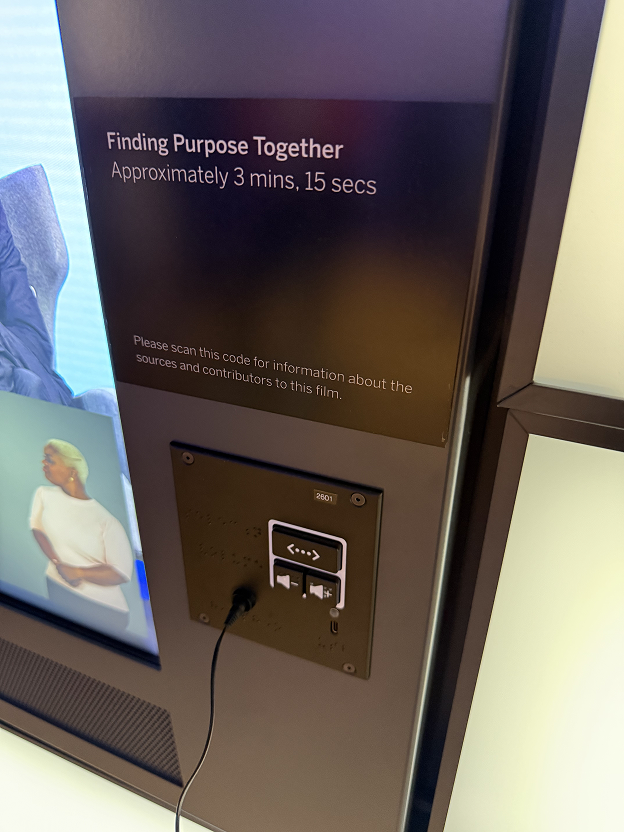
Note that the Menu and Help buttons are not available on these simpler UXP units, meaning that you won't be able to access the keypad learn Mode, adjust your speech rate and other settings, or get help directly from the device. However, Museum staff will be able to assist you if you have any questions or encounter problems.
Every UXP Has a Number
Near the top right-hand corner of every keypad, you'll find that UXP's own number, in both print and braille. The first digit is the floor, the second is the gallery, and the last two identify the station within it. If you'd like help at a particular stop, that number is an easy way to tell a staff member exactly where you are.